
Swapping a face in a GIF is different from swapping a face in a still photo. A GIF has movement, repeated frames, compression, and often a small face area. That means the source GIF matters as much as the replacement face you upload.
This guide shows how to face swap a GIF online with FaceSwapMaker, how to pick files that produce better results, and what to check when a GIF swap fails or looks unstable.
What You Need
- One GIF file — the animation you want to modify (up to 5 MB)
- One face photo — a clear, front-facing photo of the face you want to swap in (JPEG, PNG, or WebP, up to 5 MB)
No account required to try it out.
Step 1 — Upload Your GIF
Go to GIF Face Swap and upload your source GIF.
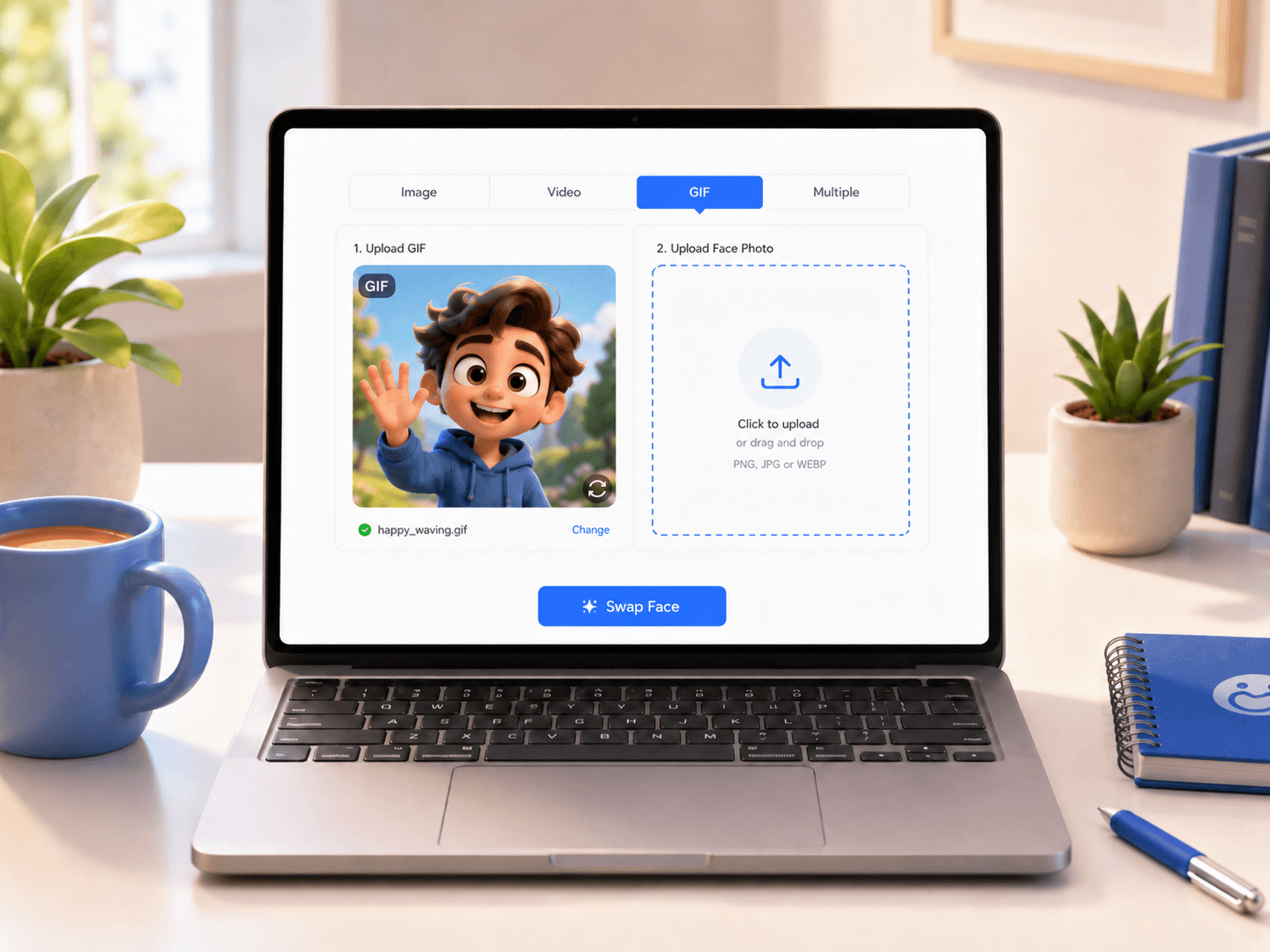
A better GIF usually has:
- One main face that stays visible for most of the clip
- Stable lighting and moderate movement
- Limited motion blur and minimal compression
A harder GIF usually has:
- A very small or fast-moving face
- Heavy shadows, flashing lights, or faces covered by hair, hands, or text
- Multiple people moving through the frame
You can still try difficult GIFs, but expect more variation between frames.
Step 2 — Upload the Replacement Face Photo
Upload a clear photo of the face you want to swap in.
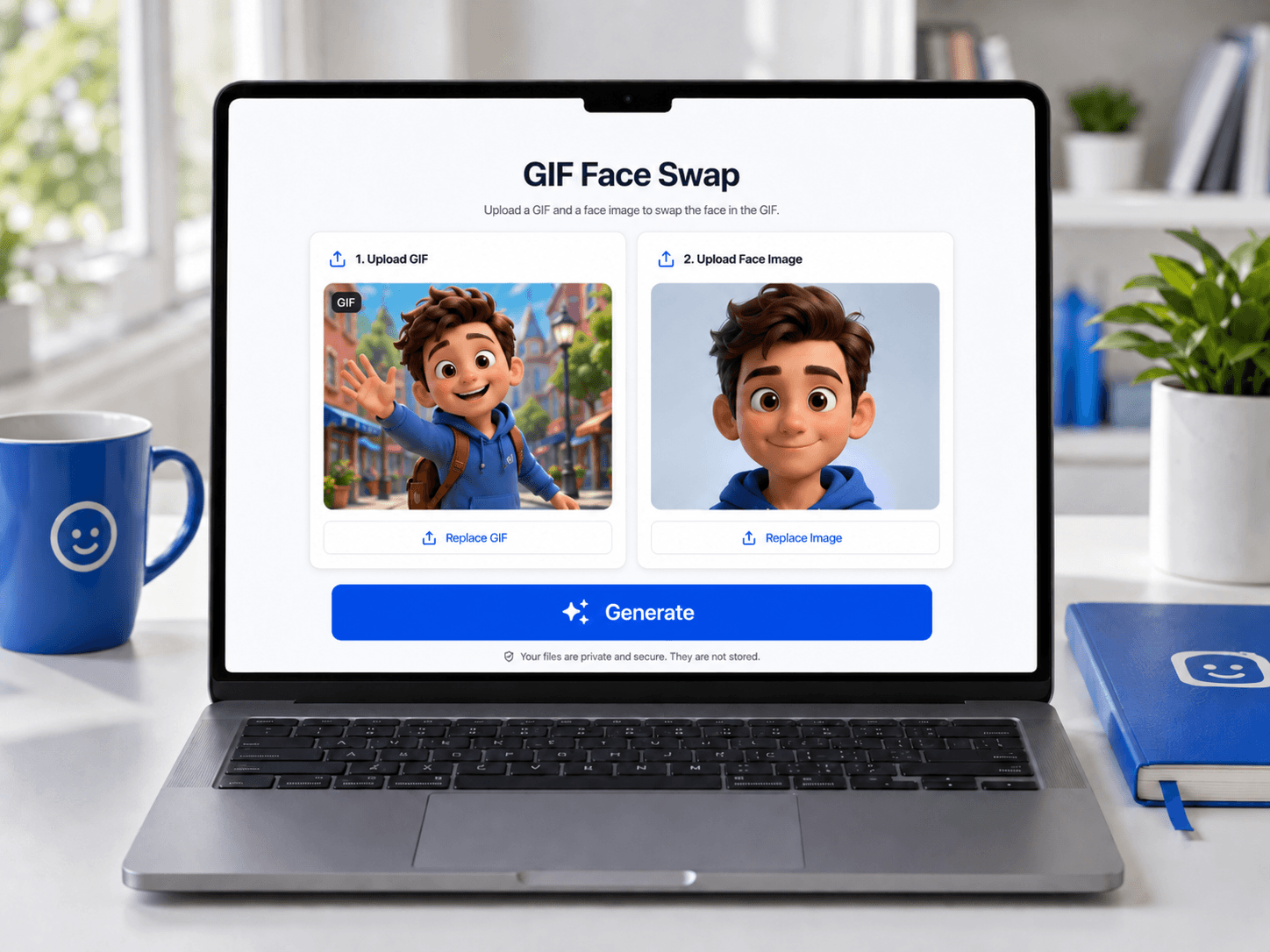
Best results come from a photo that is:
- Front-facing or slightly turned
- Well lit, sharp, and not blurred
- Free of sunglasses, masks, or heavy filters
Avoid using a group photo as the replacement. If multiple faces are detected, results may be inconsistent. Crop to a single face first if needed.
Step 3 — Generate and Download
Click Generate. The AI processes the animated sequence automatically; timing varies with frame count and queue. Preview the full animation before downloading — a GIF can look good at the start and drift later if the head moves quickly or becomes partly hidden.
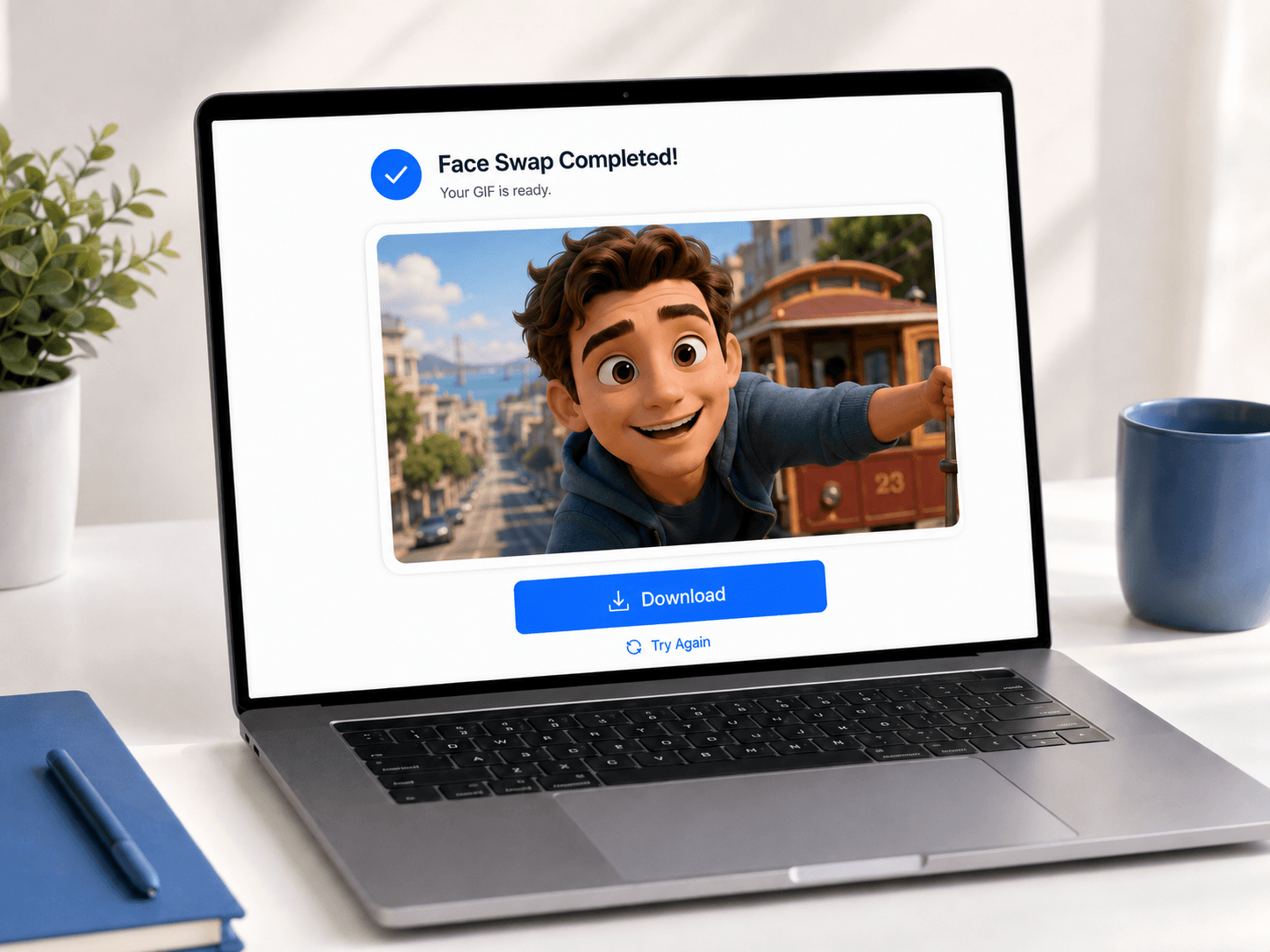
When you're happy with the result, click Download to save it.
Why GIF Face Swaps Fail
Most failed GIF swaps come from the file, the face visibility, or a safety check.
The face is too small — If the face takes up only a tiny part of the frame, there may not be enough detail to track reliably. Use a GIF where the face is closer to the camera.
The face turns away — Strong profile angles are difficult. If the person turns away for several frames, the result may become unstable. Choose a GIF where the face stays roughly forward-facing.
Too much motion blur — Motion blur hides facial edges and features. This is common in sports or dancing clips. Choose a clip where head movement is slower.
The replacement photo angle doesn't match — A front-facing replacement face can struggle with a source GIF where the head is mostly side-on. Try a replacement photo with a closer angle.
The file is too compressed — Some GIFs are so compressed that the face is blocky or distorted. If the original source is a video, use Video Face Swap instead of converting it to a poor-quality GIF first.
A safety check blocks the request — FaceSwapMaker uses safety checks and usage rules. If a request is blocked, use only content you own or have permission to edit.
Queue or network failure — If the files are valid and the use is allowed, try again with a smaller GIF or a cleaner source file.
GIF Face Swap vs Video Face Swap
Use GIF Face Swap when the source file is already a GIF and the result should stay animated as a GIF.
Use Video Face Swap when:
- Your source file is MP4, MOV, or WebM
- The clip is longer than a typical GIF
- You care more about video playback quality than GIF sharing
Do not convert a clean video into a low-quality GIF just to use the GIF tool. Compression removes face detail and makes tracking harder. If the original file is video, start with the video workflow.
For group photos, use Multiple Face Swap. The GIF tool is for animated GIFs, not for selecting several faces in a still photo.
Frequently Asked Questions
Does it swap all faces in the GIF? No — the tool replaces the most prominent face in the GIF. If you want to swap all faces in a group photo, use Multiple Face Swap instead.
How long does GIF processing take? Timing depends on frame count and the processing queue. Shorter, simpler GIFs are usually easier to process than larger or more complex files.
Is my GIF stored or shared? See the privacy policy for the current data-practice disclosure for uploads.
Do I need an account? No account is needed to try it. Free generations are limited daily; if you need more swaps, use the existing Pricing path for one-time credits.
Use Face Swap Responsibly
Only upload files you own, created, or have permission to edit. Do not use face swap to mislead people, impersonate someone, harass others, or create harmful content.
If you are making a joke GIF, label it clearly when context matters. You can read the full site rules in the Safety Policy.
Ready to try it? Open the GIF Face Swap tool, upload your GIF and one clear face photo, then start a generation.