
How to Swap Faces in a Group Photo
This guide explains how to use one group photo and one replacement face with FaceSwapMaker's Multiple Face Swap tool. The same replacement face is applied to the people the tool detects in the group photo. Only upload photos you own or have permission to edit.
What You Need
Prepare these two files before you begin:
- One group photo with faces that are visible and reasonably large in the frame.
- One replacement face photo with a clear, visible face. This one face is used for the detected people in the group photo.
The tool accepts JPG/JPEG, PNG, and WebP files. Keep each file at 5 MB or less.
How to Swap Faces in a Group Photo
Step 1: Choose suitable photos
Use a group photo with visible faces and a replacement face photo with good lighting. Photos with small faces, strong side angles, low light, blur, or face-covering objects can be harder to detect.
Step 2: Upload the group photo
Open the Multiple Face Swap tool and upload the group photo you want to edit. Check that you have permission from the people shown before continuing.

Step 3: Upload one replacement face
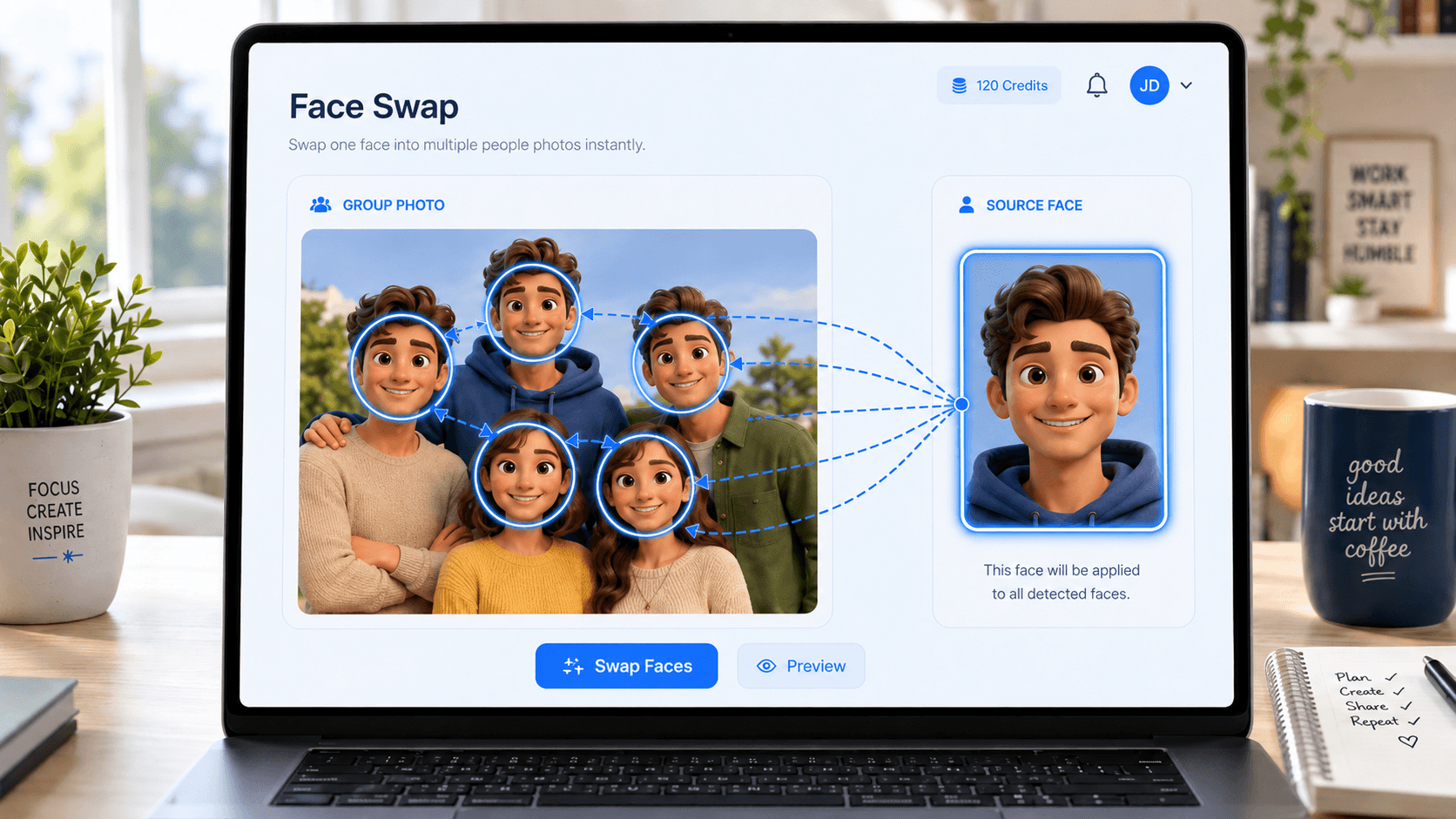
Upload one clear replacement face photo. The tool uses that same face for the people it detects; it does not let you assign a different replacement face to each person or select faces manually.
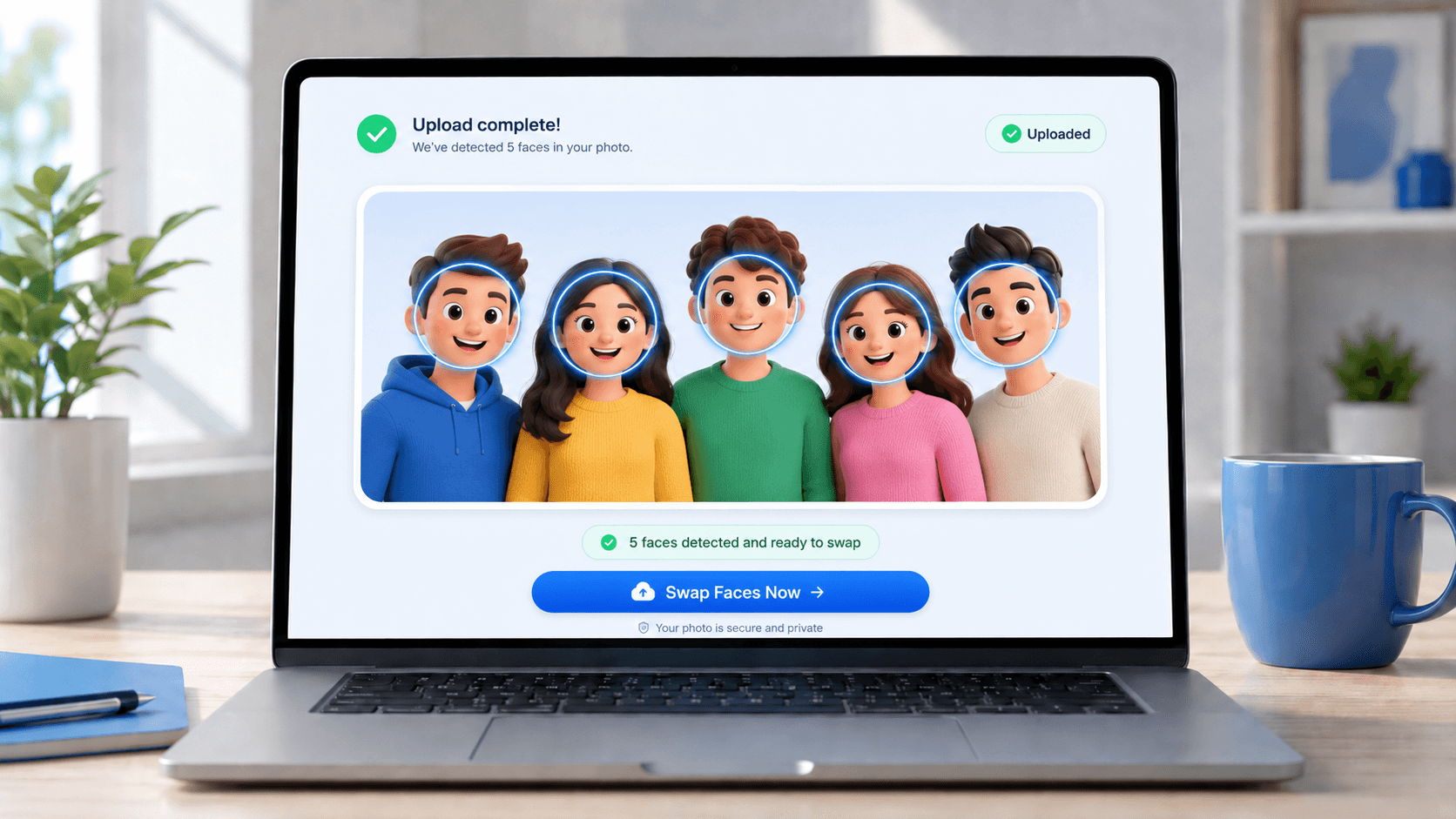
Step 4: Generate and review the result
Start the generation, then review the result before downloading it. If a face is missed or the result is unsuitable, try a clearer image with better lighting, a more visible face, or less obstruction.
Why a Face May Not Be Detected
Detection can be affected by the source image. Try a different photo when you see one of these conditions:
- The face is too small: use a closer or higher-quality group photo.
- The face is turned away: choose a photo with a more visible face angle.
- Lighting is difficult: use an image where faces are easier to see.
- The image is blurry or heavily compressed: start with a clearer source file.
- Part of the face is covered: try an image without hands, hair, masks, glasses, or other obstructions across the face.
One Replacement Face for Detected People
Multiple Face Swap is designed for a group photo plus one replacement face. It applies the same replacement face to people detected in the group photo. If your task needs distinct replacement faces for different people, this tool is not designed for that workflow.
Use Photos With Permission
Use photos you own or have permission to edit, and make sure the intended use is allowed. Do not use the tool for non-consensual, deceptive, adult, or harmful face swaps. If you are unsure whether you have permission, do not upload the image.
Choose the Right Tool for the Format
For a still photo with one main face, use the photo face swap tool. For animated files, use GIF Face Swap or Video Face Swap. This guide is for a still group photo and one replacement face.
Frequently Asked Questions
Does this let me use a different replacement face for each person?
No. The tool uses one replacement face and applies it to the people it detects in the group photo.
What file types can I upload?
Use JPG/JPEG, PNG, or WebP files up to 5 MB each.
What should I do if a face is missed?
Try a group photo with a clearer, larger, better-lit, and less-obstructed face. A more visible face angle can also help.
Can I use a group photo of other people?
Only when you have permission to edit the photo and use the likenesses shown. Avoid non-consensual or deceptive use.