
Swapping faces in a video used to require professional video editing software and hours of manual work. Today, AI can do it in minutes — directly in your browser, no app download needed.
This guide walks you through exactly how to video face swap online for free using FaceSwapMaker, step by step.
What You Need
Before you start, make sure you have:
- A video clip — MP4 format works best. Choose a clip that is suitable for the result you want to create.
- A face photo — A clear, front-facing photo of the face you want to swap in. Good lighting, no sunglasses.
- A device with a browser (phone or desktop both work fine)
That's it — you'll just need to sign in before generating, since video face swap isn't part of the anonymous free trial.
How to Swap Faces in a Video: 3 Steps
Step 1 — Upload Your Video
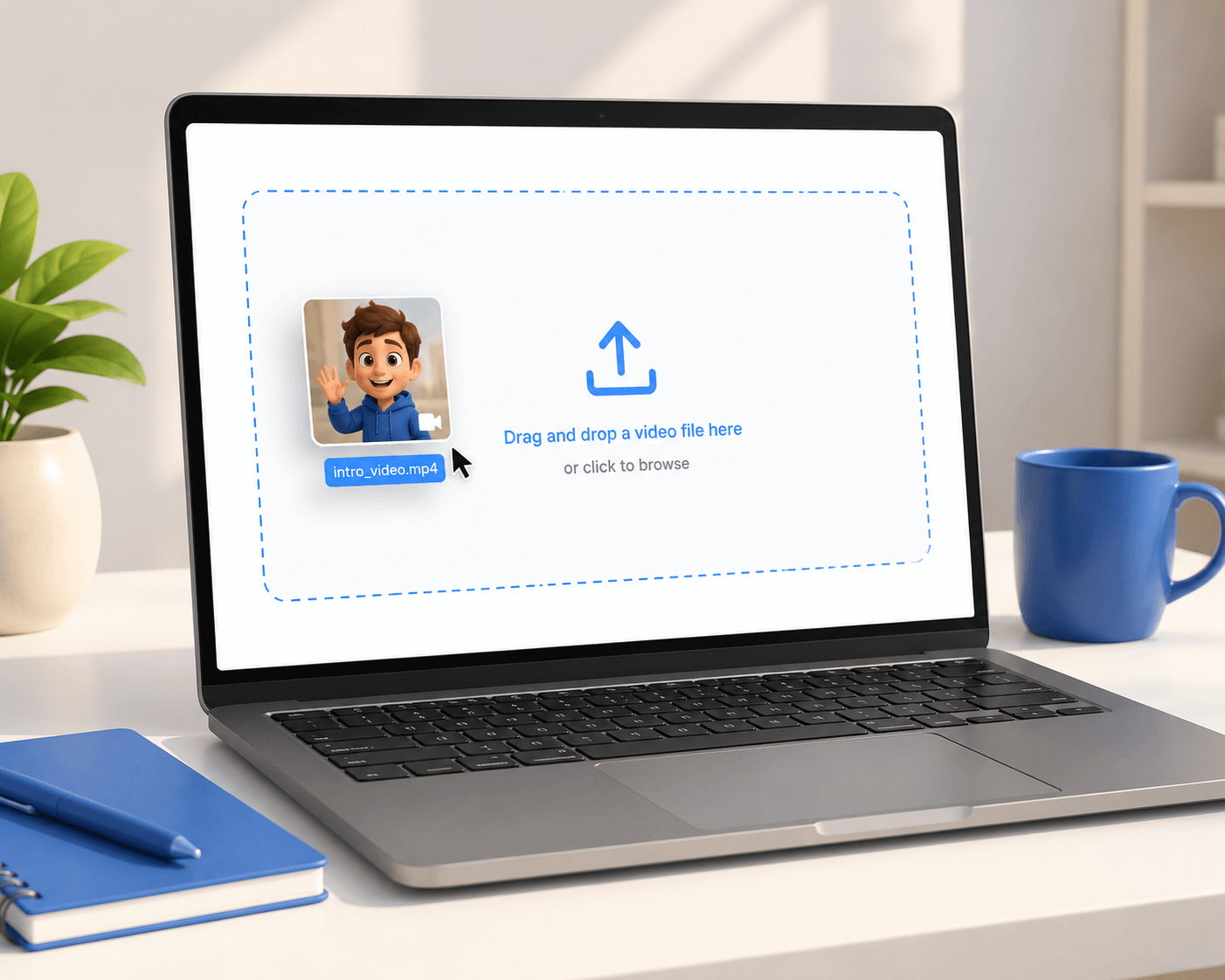
Go to video-face-swap and click Upload Video. Select the video clip from your device.
The tool will detect the main face in the video automatically — you don't need to mark or select it manually.
Step 2 — Upload the Face Photo
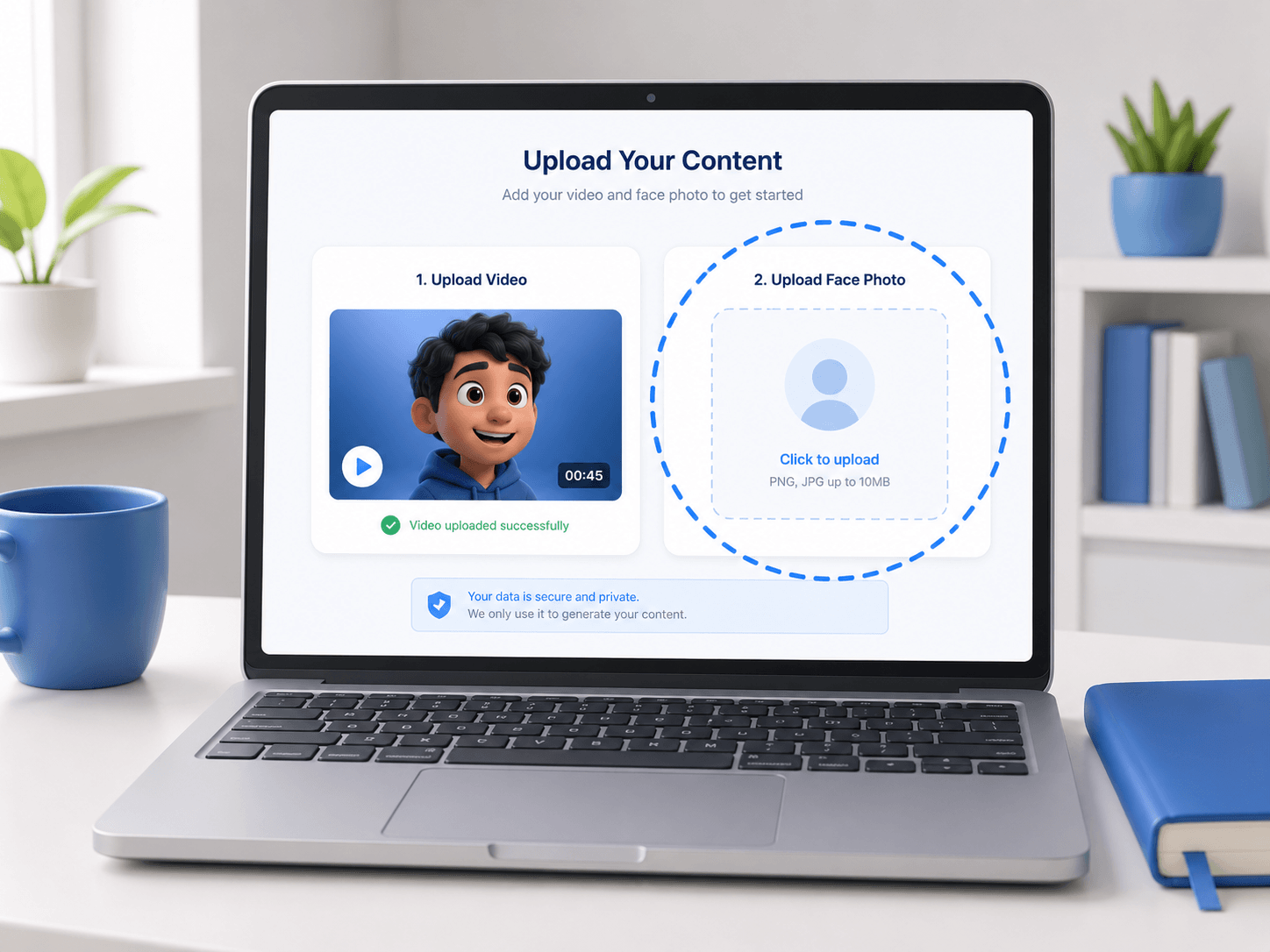
Click Upload Face and choose the photo of the face you want to swap in.
For the best result:
- Use a photo where the face is clearly visible and centered
- Avoid group photos or images where the face is partially cropped
- Well-lit, front-facing photos work better than side angles
Step 3 — Generate and Download
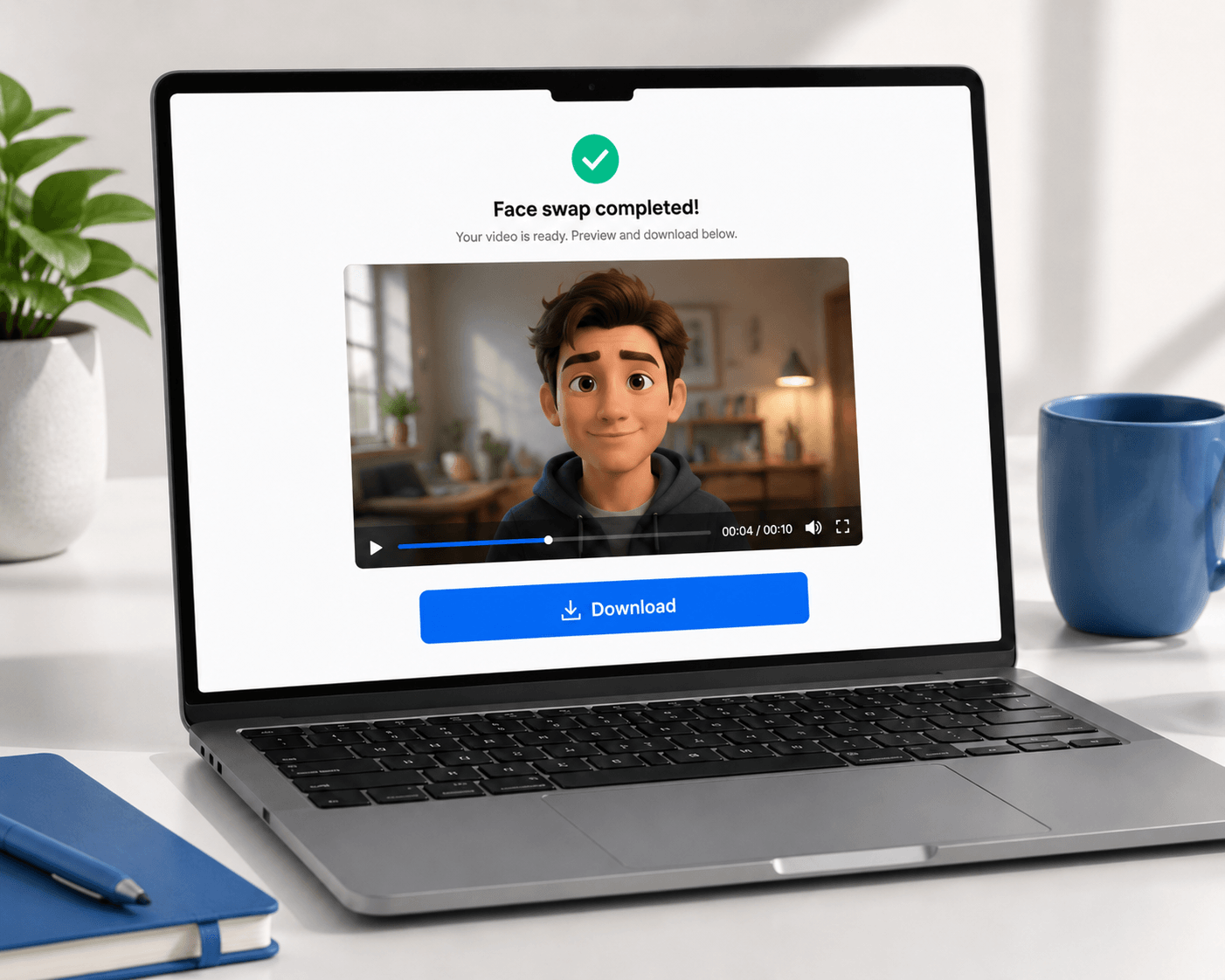
Click Generate. The AI will process your video and swap the main face. Once it's done, preview the result and hit Download to save it to your device.
Processing time depends on the uploaded file and current service conditions.
Tips for Better Results
Use a steady, well-lit video. Shaky footage or dim lighting makes it harder for the AI to track the face across frames. Natural daylight or indoor light facing the subject works best.
Keep the face visible throughout. If the subject turns away from the camera for long stretches, the swap may look inconsistent in those sections.
Trim your video first. Uploading only the section you need (rather than the full clip) speeds up processing and uses fewer credits.
Match the face photo angle to the video. If the person in the video is mostly facing forward, a front-facing photo of the swap face gives a more natural blend.
Use a high-resolution face photo. Blurry or low-res face photos tend to produce softer, less sharp results in the output video.
Why Video Face Swap Fails (and How to Fix It)
Even with a good tool, swaps don't always come out perfect on the first try. Here are the most common reasons and what to do about them:
The face is too small or far from the camera. If the subject is far away, the AI may struggle to detect and track the face reliably. Use a video where the face is reasonably close and fills a decent portion of the frame.
The face is partially obscured. Hands, hair covering the face, hats, or glasses blocking the eyes can all confuse the model. Try a clip where the face is clearly visible.
The face photo has poor lighting or strong shadows. High contrast shadows on the face photo create an unnatural blend in the output. Choose a well-lit face photo with soft, even lighting.
Multiple people are in the video. This tool swaps the most prominent face in the video. If there are several people and it's unclear who the "main" face is, results may be unpredictable. For group scenarios, use a clip where one person is clearly dominant.
The video is too long or high resolution. Very long clips take more time and resources to process. If a swap is failing consistently, try trimming your video to just the key section.
Video Face Swap vs. Other Face Swap Formats
Not sure which tool fits your use case? Here's a quick comparison:
| Format | Best For | Tool |
|---|---|---|
| Photo | Profile pictures, single portraits | Face Swap |
| Group Photo | Team photos, group shots | Multiple Face Swap |
| GIF | Memes, short looping clips | GIF Face Swap |
| Video | Video clips, reels, short films | Video Face Swap |
If you just want to swap a face in a still photo, the photo face swap tool is faster and uses fewer credits. For looping animations, GIF face swap is the better choice.
Frequently Asked Questions
Is video face swap free? It's not part of the anonymous free daily trial — you need to sign in first, then each swap uses credits (starting at 15 credits). Photo and GIF face swap remain free to try without signing in.
What video formats are supported? MP4 is the most reliable format. Most common video formats are accepted, but converting to MP4 first is recommended if you run into issues.
How long does it take to process a video? Processing time depends on video length, file characteristics, and current service capacity.
Can I swap multiple faces in one video? The current tool targets the most prominent face in the video. If you need to swap multiple different faces, you would need to process the video in separate passes.
Is my video stored or shared? Uploads may be processed as needed to provide the requested service and to support safety and abuse prevention. See the privacy policy for the current data-practice disclosure.
The result looks blurry — what went wrong? This is usually caused by a low-resolution face photo or a video with unstable lighting. Try a sharper face photo and a better-lit video clip.
Can I use it on my phone? Yes. The tool works in mobile browsers without any app download.
Try It Now
Ready to see it in action? Head to Video Face Swap and give it a try — sign-in required to generate your first result.
For other face swap formats, check out the GIF face swap guide or the group photo face swap guide.