
Want to put your face into a photo — or swap someone else's face into one — without downloading any software? AI face swap tools make it possible in seconds, directly in your browser.
This guide shows you exactly how to face swap photos online for free using the face swap tool, step by step.
What You Need
Before you start, have these ready:
- A source photo — The photo you want to swap a face into. A clear, well-lit portrait works best.
- A face photo — A photo of the face you want to swap in. Front-facing, good lighting, no sunglasses.
- A device with a browser (phone or desktop both work)
No account needed to try it out.
How to Face Swap a Photo: 3 Steps
Step 1 — Upload Your Photo
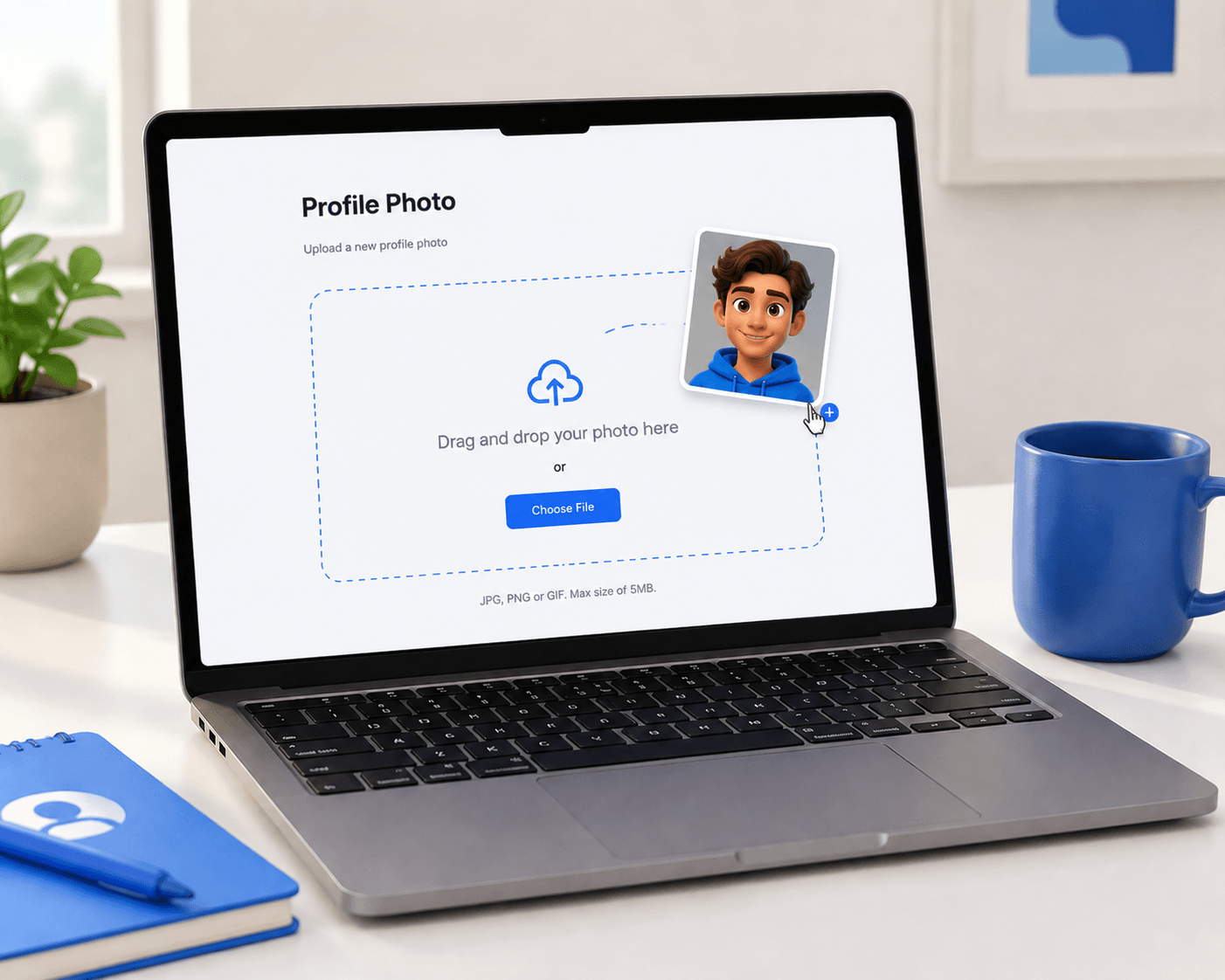
Go to the face swap tool and click Upload Photo. Select the source photo from your device — this is the photo that will receive the new face.
The tool automatically detects the face in the photo. No manual selection needed.
Step 2 — Upload the Face Photo
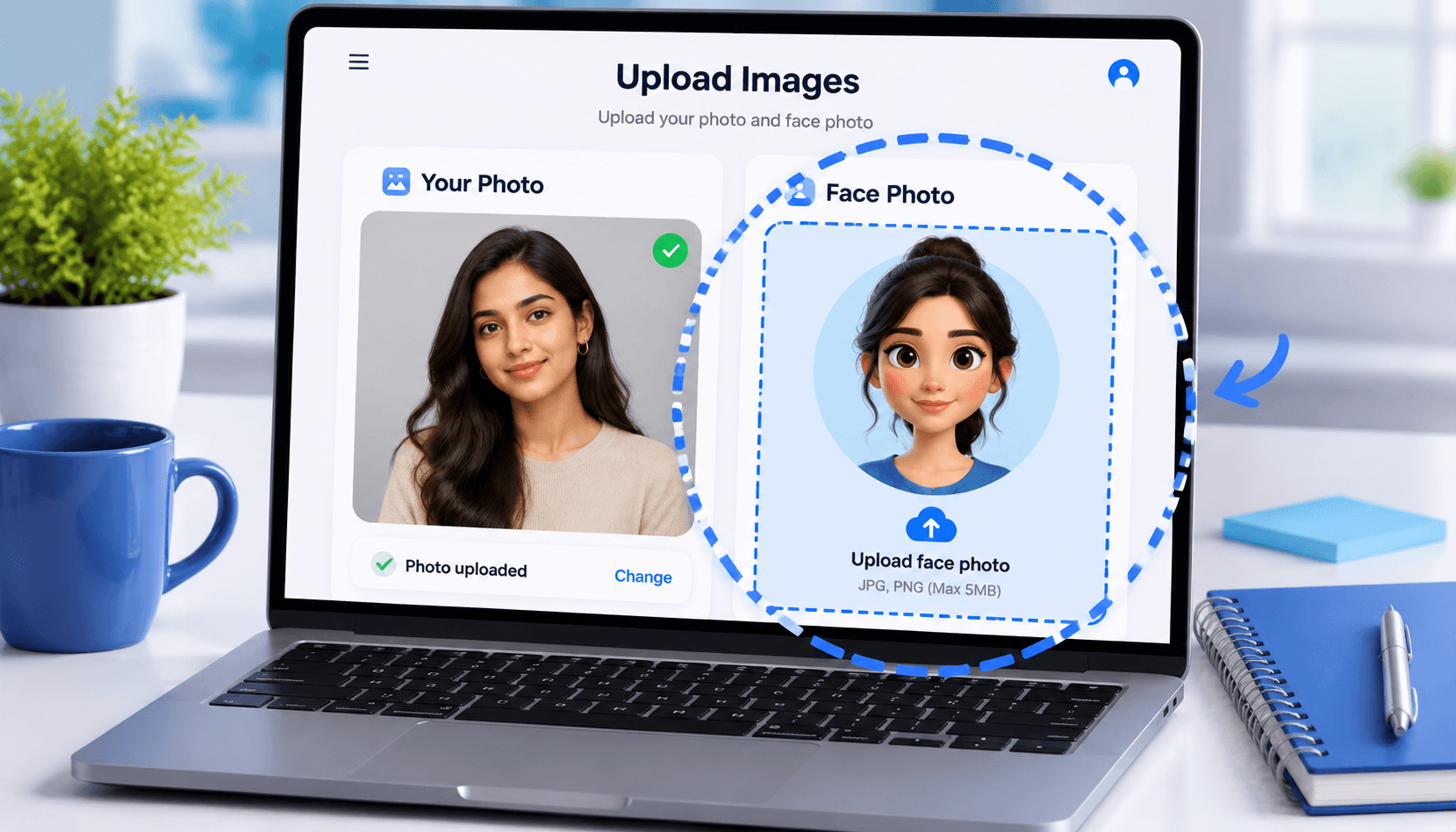
Click Upload Face and choose the photo of the face you want to swap in.
For the best result:
- Use a clear, front-facing photo with even lighting
- Avoid photos where the face is partially cropped or at a sharp angle
- Higher resolution photos produce sharper, more natural results
Step 3 — Generate and Download
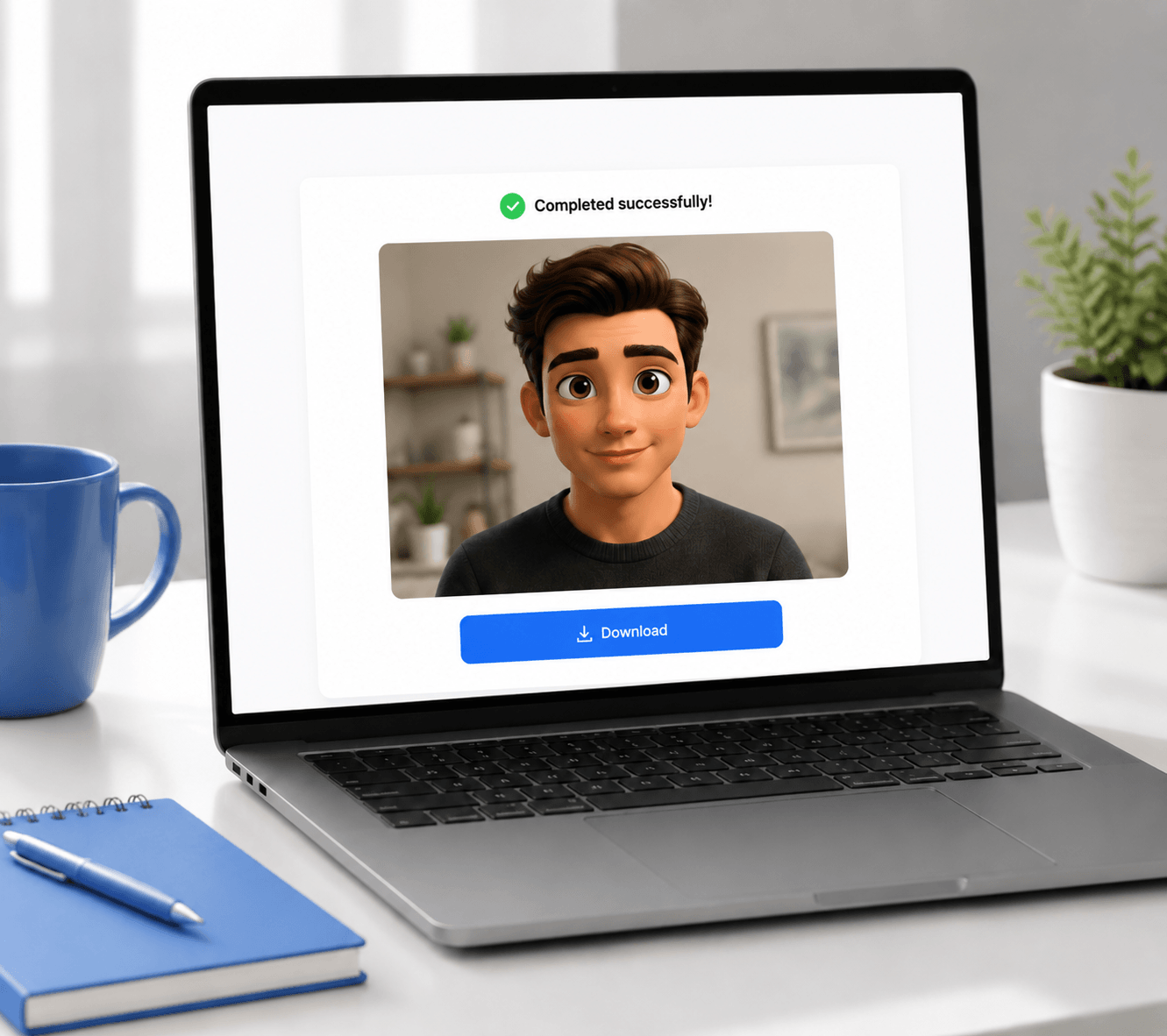
Click Generate. The AI blends the new face into the source photo, matching the lighting, angle, and skin tone as closely as possible. Once done, preview the result and hit Download to save it.
Processing time can vary with the file, service capacity, and other technical conditions.
Tips for Better Results
Use a high-quality source photo. The clearer and higher resolution the original photo, the better the final blend. Blurry or heavily compressed photos limit how well the AI can work.
Match the face angle as closely as possible. If the person in the source photo is looking slightly to the left, a face photo taken at a similar angle will produce a more natural result than a perfectly frontal shot.
Use even, soft lighting in both photos. Strong shadows or harsh directional light on either photo can make the swap look artificial. Natural daylight or soft indoor light works best.
Avoid photos with accessories blocking the face. Sunglasses, masks, hats pulled low, or hair covering significant parts of the face can interfere with the AI's ability to detect and replace the face accurately.
Use a single, clear face in the face photo. If the face photo contains multiple people, the AI may not know which face to use. Use a photo where one face is clearly the subject.
Why Face Swap Fails (and How to Fix It)
No face detected in the source photo. If the face is too small, turned away, or obscured, the AI may fail to detect it. Try a closer, more clearly visible shot of the subject.
The face photo has poor lighting or extreme shadows. Strong shadows on the face photo create an unnatural blend with the source photo. Choose a well-lit face photo with soft, even light.
The skin tones are very different between the two photos. The AI adjusts for skin tone, but extreme differences in lighting or color temperature between the two photos can lead to an unnatural result. Try photos taken in similar lighting conditions.
The face angle is too different. A face looking straight at the camera swapped into a profile shot will look off. Use a face photo that roughly matches the angle of the face in the source photo.
The source photo resolution is too low. Very low-resolution photos limit the quality of the output. If the result looks pixelated, try a higher-resolution version of the source photo.
The result has visible edges or looks pasted. This usually happens when the lighting in the two photos is very different. Try source photos and face photos taken in similar lighting conditions.
Face Swap Photo vs. Other Formats
Not sure which tool is right for your situation? Here's a quick guide:
| Format | Best For | Tool |
|---|---|---|
| Single Photo | Portraits, profile pictures, solo shots | Face Swap |
| Group Photo | Team photos, family shots, group portraits | Multiple Face Swap |
| GIF | Memes, short looping animations | GIF Face Swap |
| Video | Video clips, reels, short films | Video Face Swap |
If you need to swap faces in a group photo — where multiple people are present — use the multiple face swap tool instead. It's designed for that scenario. For animated content, check out GIF face swap or video face swap.
Frequently Asked Questions
Is photo face swap free? Yes — you can try it without creating an account. Free users get a limited number of generations per day. For more swaps, you can purchase a credits pack.
What photo formats are supported? JPG and PNG are the most reliable formats. Most common image formats are accepted.
How long does it take? Processing time can vary with the uploaded file and current service capacity.
Can I swap faces in a photo with multiple people? This tool works best with a single face in the source photo. For group photos where you want to swap one face among many, use the multiple face swap tool.
Is my photo stored or shared? Uploads may be processed as needed to provide the requested service and to support safety and abuse prevention. See the privacy policy for the current data-practice disclosure.
The face looks unnatural — what went wrong? The most common causes are mismatched lighting between the two photos, very different face angles, or a low-resolution face photo. Try matching the lighting conditions and angle more closely.
Can I use it on my phone? Yes. The tool works in any mobile browser — no app download needed.
Can I use any face photo, including celebrities? The tool is intended for personal, creative use. Creating deceptive or harmful content using someone else's likeness without their consent is not permitted.
Try It Now
Ready to give it a go? Head to the photo face swap tool and try it for free — no sign-up required.
For other formats, check out the video face swap guide, the GIF face swap guide, or the group photo face swap guide.